
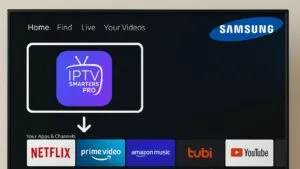
Introduction to Set IPTV
Set IPTV is a modern application designed for smart TVs, specifically optimized for devices such as the Samsung Smart TV. This software enables users to stream a wide variety of television channels over the internet, distinguishing itself from traditional broadcast and cable services in several significant ways. By using Set IPTV, viewers can access numerous channels and content without the need for conventional satellite dishes or cables, thus simplifying the viewing experience. PRICE
The functionality of Set IPTV lies in its ability to aggregate IPTV (Internet Protocol Television) content, providing users with seamless access to live TV and on-demand video. The app supports a diverse range of file formats and utilizes an intuitive user interface, making it straightforward for users to navigate through different programming options. One of the major benefits of this service is the convenience it offers; subscribers can watch their preferred shows on demand, ensuring they never miss their favorite programming.
In addition to convenience, Set IPTV often provides access to international content, catering to a global audience. This is particularly beneficial for expatriates who wish to stay connected to channels from their home countries. Users may also find that Set IPTV offers more flexible subscription models compared to traditional services, allowing for a more tailored viewing experience. With the increasing emphasis on internet streaming, the attraction of utilizing apps like Set IPTV is likely to continue growing, especially among younger demographics who favor online access over traditional broadcasting. CONTACT US
Requirements for Installation
To successfully install Set IPTV on a Samsung Smart TV, it is essential to meet certain hardware and software requirements. Ensuring compatibility with your device is the first step in this process. Samsung Smart TVs released after 2012 generally support the Set IPTV application, but it is advisable to verify that your specific model is listed among compatible versions. Check your user manual or Samsung’s official website for further details regarding your television model.
In addition to verifying hardware compatibility, having a stable and reliable internet connection is crucial for optimal performance. Set IPTV relies on streaming content over the internet, and a slow or unstable connection may lead to buffering issues, degraded video quality, or service interruptions. A wired Ethernet connection is often recommended for a more stable experience, but a well-established Wi-Fi setup can suffice as well.
Another critical element is ensuring that your Smart TV’s firmware is up to date. Regular firmware updates often include performance improvements, compatibility enhancements, and important security patches that contribute to a smoother user experience. This can usually be done through the settings menu on your Samsung Smart TV. Navigate to the support section, check for updates, and install any available firmware versions to prepare your device for using Set IPTV.
To summarize, the prerequisites for installing Set IPTV on your Samsung Smart TV comprise a compatible television model, a stable internet connection, and the latest firmware update. Meeting these requirements is vital to ensure smooth operation and streaming capabilities of Set IPTV on your device. Blogs
Accessing the Samsung Smart Hub
To utilize the Samsung Smart TV effectively, users must first learn how to navigate the Smart Hub interface. This intuitive platform serves as a gateway to a plethora of apps, services, and settings that enhance the viewing experience. The process begins by switching on your Samsung Smart TV and using the remote control to access the home screen, which displays various options vertically aligned on the screen.
Once on the home screen, you will find a row of apps and features. The Smart Hub allows you to easily locate particular applications. To access the app store, look for the icon labeled ‘Apps’. Clicking this icon will redirect you to the Samsung Apps section, where you will find a multitude of applications organized by categories such as Entertainment, Lifestyle, and more.
To search for the Set IPTV application specifically, navigate to the search option, usually represented by a magnifying glass icon. Upon selecting this option, a virtual keyboard will appear on the screen. Here, you can enter the keywords ‘Set IPTV’. The Smart Hub will automatically begin displaying results pertinent to your search query.
Upon locating the Set IPTV app from the search results, select it to view more details. In this section, you will find additional information about the app, including user ratings and support information. Once you are satisfied, you can proceed to download the application by clicking the ‘Install’ button. Once installation is complete, the Set IPTV app will be available in your apps list, accessible directly from the Smart Hub for your viewing pleasure.
Downloading and Installing Set IPTV
The process of downloading and installing Set IPTV on a Samsung Smart TV is straightforward and user-friendly. To initiate the installation, first, ensure your Samsung Smart TV is powered on and connected to a stable internet connection. With your TV remote, press the ‘Home’ button to access the Smart Hub, which serves as the central hub for navigating applications.
Once in the Smart Hub, use the search function located at the top of the screen. Input “Set IPTV” into the search bar. It is essential to enter the name precisely to ensure the application appears in the results. After successfully locating the Set IPTV application, select it to access the application details screen.
Within the application details, you will find an option to download the app. Click on the ‘Install’ button to begin the download process. The progress of the download will be displayed on the screen, and once it is completed, the app will automatically install onto your device. This process generally takes only a few moments, depending on your internet speed.
After the installation is complete, the Set IPTV application icon will become available in your Smart Hub. You can now launch the application by selecting its icon. The first time you open Set IPTV, you may need to enter your credentials or load your IPTV subscription details, which are necessary for using the service. It is recommended to follow any on-screen prompts to ensure a seamless setup experience.
By following these steps, users can easily download and install the Set IPTV application on their Samsung Smart TV, allowing for access to a wide range of content and services efficiently. This intuitive process makes it accessible for users of all experience levels. About Televizo IPTV – Premium IPTV Subscription Service
Setting Up Set IPTV for the First Time
After successfully installing Set IPTV on your Samsung Smart TV, the next step involves launching the app and configuring its basic settings for optimal usage. Begin by accessing the Set IPTV application from your Samsung TV’s main screen. The app icon should be prominently displayed, and selecting it will initiate the program.
Once the application is launched, a prompt will appear, guiding you through the initial setup process. You’ll be presented with a straightforward interface that requires you to enter relevant details for accessing IPTV channels. The primary necessary input is the portal URL, which serves as a linkage to your subscribed IPTV service. This URL can typically be found within the welcome email from your IPTV provider or their website. Enter the URL in the designated input field and ensure it is accurate to avoid connection issues.
Additionally, Set IPTV may offer options to customize your viewing experience. You can access settings to adjust preferences such as language, aspect ratio, and channel sorting. Adjusting these settings ensures that the interface meets your personal viewing requirements. It is advisable to take some time to explore these features, enhancing your overall experience with the IPTV service.
After entering the portal URL and making any desired adjustments, save the settings and restart the Set IPTV application. Doing so will allow the app to connect to the service, loading the channels available through your subscription. Depending on your internet connection and the number of channels, this process may take a few moments. If everything is configured correctly, you should now have access to a wide variety of IPTV channels tailored to your interests.
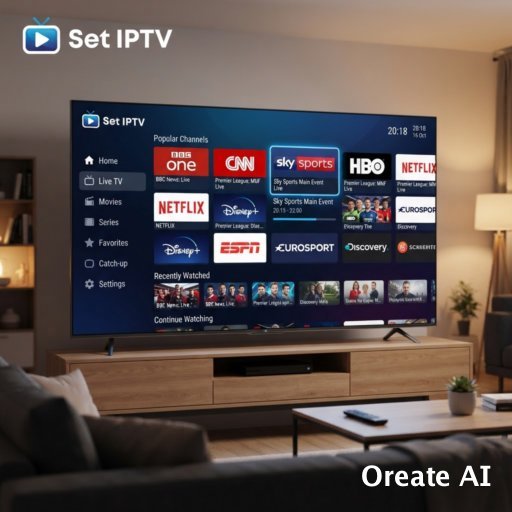
Troubleshooting Common Installation Issues
While installing Set IPTV on your Samsung Smart TV can be a straightforward process, users may encounter various challenges that hinder a seamless experience. Understanding these common installation issues and their solutions can save time and enhance overall satisfaction with the application.
One prevalent problem is app freezing, which can occur during the installation or when using Set IPTV. If the app becomes unresponsive, try restarting your Samsung Smart TV. This can help reset the software and allow you to return to the home screen. If freezing continues, consider uninstalling and reinstalling the app. Ensure that your Samsung Smart TV’s firmware is up to date, as outdated software can lead to compatibility problems.
Connectivity problems can also occur, particularly if your Internet connection is unstable. A weak or intermittent connection can adversely affect the installation and streaming quality of content within the Set IPTV app. Verify that your TV is connected to a strong Wi-Fi network. You may want to restart your modem or router to refresh the connection. Sometimes, switching to a wired connection can resolve connectivity issues more effectively than Wi-Fi.
Lastly, users may notice issues with streaming quality, such as buffering or low resolution. This can arise from insufficient bandwidth or server-side problems. Ensure that other devices connected to your network are not consuming excessive bandwidth by streaming or downloading content simultaneously. You may also want to test the Set IPTV service at different times to identify if the issue is related to the service’s server load. By identifying the cause of these issues and employing the suggested solutions, users can enhance their Set IPTV experience significantly. https://wa.me/message/DRDVXQBU2D6DA1
Optimizing Set IPTV Performance
To enhance the viewing experience on Set IPTV installed on your Samsung Smart TV, several optimization techniques can be employed. These methods focus on improving streaming quality and ensuring a seamless connection. First and foremost, it is essential to check your internet connection, as a stable and high-speed connection is crucial for smooth streaming. Ideally, a bandwidth of at least 10 Mbps is recommended to avoid buffering issues, especially when watching high-definition content. You can check your internet speed using various online speed tests.
Another useful tip is to position your router strategically within the home. If your TV is connected via Wi-Fi, ensuring minimal distance and obstacles between the router and the TV can significantly improve signal strength. For users who experience persistent connectivity issues, switching to a wired Ethernet connection from the router to the Samsung Smart TV might be beneficial. This approach eliminates potential Wi-Fi interference and can provide a more consistent and reliable internet speed.
Adjusting the settings within the Set IPTV application can also lead to better performance. Users should explore the streaming quality settings in the app. Lowering the resolution during peak usage times can reduce buffering, allowing for uninterrupted viewing. Furthermore, regularly clearing the app’s cache can help remove unnecessary data that may affect the application’s performance. Periodically updating the application to the latest version can also ensure that you benefit from performance improvements and bug fixes.
By implementing these strategies, users can effectively optimize Set IPTV on their Samsung Smart TV, allowing for an enhanced and smooth viewing experience. Continuous monitoring of the network environment and adjusting settings as necessary will contribute to a consistently high-quality streaming experience.
Exploring Features of Set IPTV
Set IPTV offers a range of features designed to enhance user experience and accessibility for viewers on Samsung Smart TVs. One of the most notable features is the comprehensive channel selection. Users have the ability to choose from an extensive lineup of channels, ensuring that they can access both local and international content. This flexibility allows for personalized viewing options that cater to various interests and preferences.
In addition to live television, Set IPTV provides video on demand (VOD) services, granting users the ability to watch a variety of content at their convenience. This feature is particularly appealing for individuals with busy schedules who may not be able to keep up with live broadcasts. The VOD library is typically updated frequently, offering a wide range of films, series, and documentaries that can be accessed at any time.
Parental controls are also an integral part of the Set IPTV experience. These controls empower parents to manage their children’s viewing habits by allowing them to restrict access to specific channels or content based on age-appropriateness. This feature ensures a safe viewing environment and provides peace of mind for parents.
The user interface options in Set IPTV are tailored for maximum usability. The interface is generally intuitive, making navigation easy for users of all ages. Customizable viewing preferences further enhance the user experience, allowing individuals to adjust settings such as screen size, text size, and more. This level of personalization ensures that each user can enjoy their viewing experience according to their unique preferences.
Overall, the features offered by Set IPTV make it a compelling choice for Samsung Smart TV users seeking a versatile and enjoyable streaming solution. FAQ
Conclusion and Recommendations
In our exploration of how to install Set IPTV on Samsung Smart TVs, we have highlighted the essential steps needed to achieve a seamless installation. This guide emphasizes not only the installation process but also the numerous benefits that Set IPTV provides, enhancing the viewing experience for users.
The use of Set IPTV on Samsung Smart TVs allows for effortless access to a myriad of channels, making it a powerful tool for those seeking a diverse selection of entertainment options. Its user-friendly interface and robust functionalities also contribute to a superior streaming experience, ensuring that users can enjoy their favorite content without hassle.
To maximize your experience with Set IPTV, we recommend ensuring that your Samsung Smart TV is updated to the latest firmware version, as this can improve performance and compatibility. Additionally, a stable and fast internet connection is crucial; consider using a wired connection if possible, as it tends to provide a more reliable streaming experience than Wi-Fi.
Furthermore, regularly check for updates to the Set IPTV application itself and engage with the application’s settings to customize your viewing experience. Exploring various content options and utilizing playlist features can also enhance your engagement with the service, allowing for a more tailored entertainment experience.
Ultimately, Set IPTV is a robust choice for Samsung Smart TV users, offering flexibility and an extensive range of viewing choices. By following the recommendations presented here, users can optimize their IPTV experience, leading to increased satisfaction and enjoyment in their media consumption.